
Advanced#
Two optional power features: multiple Daz scenes on one character (outfits, per-scene hair, per-scene overrides), and the Modify JCM frames grid. The Advanced options panel is in Your first character.
Multiple Daz scenes — outfits & hair variants#
One character often exists as several Daz scenes — outfits, hair styles, variants. Rather than duplicate the character, link every scene to the one definition: the ROM stays shared, the per-scene bits attach to their scene.
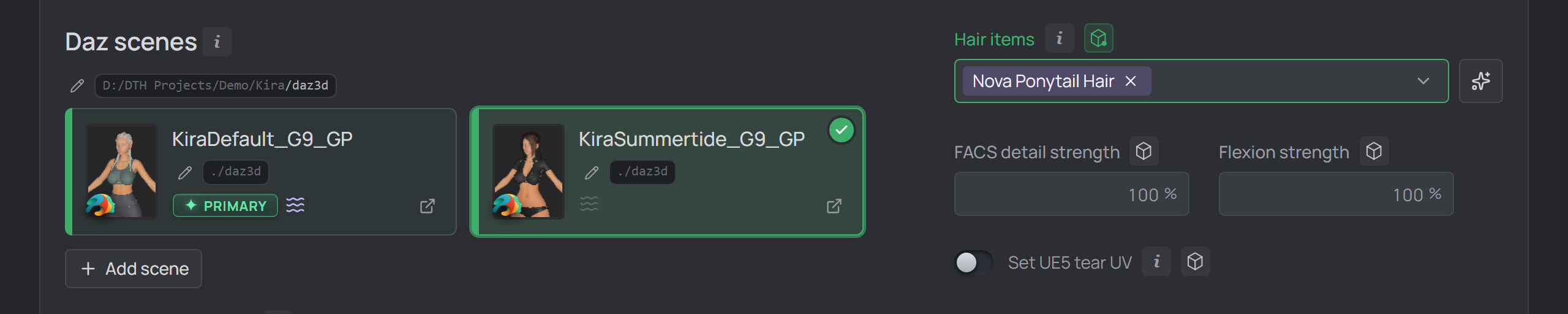
Two linked scenes: the primary and a selected outfit scene — the hair items beside the cards belong to the selected one.
Add scene (or dropping a .duf on the cards) links another, validated first —
same Genesis generation, one character, empty timeline, and the same GP/DK
geograft as the primary (Add anyway overrides) — then copied into its own
subfolder or left in place. The primary can't be unlinked; removing an extra
with Delete file on disk ticked also deletes that scene's subfolder (saved ROM
animations included) and its daz-export folder.
Re-ordering: hover a card for its grip and drag. The order is the character's own, so it holds wherever the scenes are listed — the docked bar, the DTH Export rows. The primary stays first; the extras re-order among themselves.
Replacing the primary is offered while it is the character's only scene: its card's folder button browses for a new one, validates it and swaps it in — the Genitalia section re-derives from the new geograft, detected hair items are pre-selected, and the avatar follows. With extra scenes linked it is not offered: unlink them, replace, then add each back.
The selected scene#
Clicking a card selects that scene, and the per-scene features follow: the hair items list edits the selected scene's, and editing an overridable field overrides it for that scene. Scroll the cards off-screen and a docked scene bar slides up — click a pill to switch.
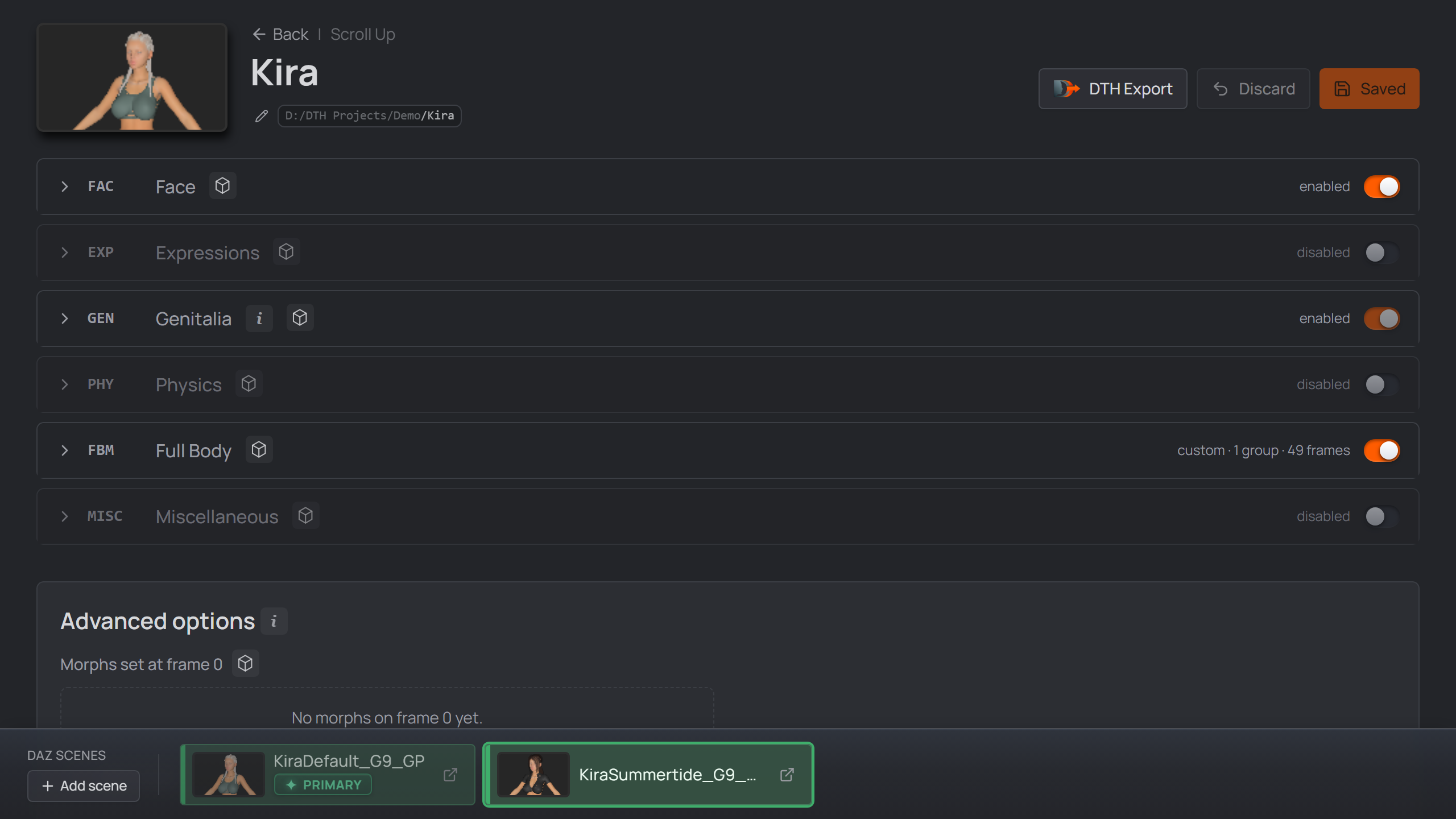
Scroll the scene cards off-screen and the docked bar keeps the selected scene on hand — click a pill to switch.
Hair items — per scene, kept out of the export#
Whatever a scene lists as hair items stays out of the DTH export: hidden right before the DTH Exporter runs, shown again after. The Exporter Plugin 2.0.1+ also unparents them, keeping them out of both the FBX and the Alembic (the character page warns when yours is older). The picker edits the selected card's list; the one generated script bakes every scene's and applies the right one for the open scene.
- List the top fitted item (e.g. the hair cap) — its children ride along.
- The dropdown offers the items found in the scene file; a label it doesn't offer can be typed exactly as it appears in Daz's Scene pane.
- A listed label that isn't found in the open scene turns amber, and the export stops rather than shipping a hair-polluted export.
Characters with hair items also get an Export_Hair_… script — one
<Name>_Hair_<item>_grooms.abc per listed item for Houdini's DazToHueGroom
Import node.
Per-scene overrides — edit to override#
Beyond hair, almost everything can differ per scene: the identity dials, the Advanced options lists, and the whole ROM — every section's mode, preset asset, GEN art direction, custom-JCM path, frames and groups, plus the Modify JCM frames grid.
Select the scene first. Each overridable field — and each ROM section title — then carries a small cube glyph.
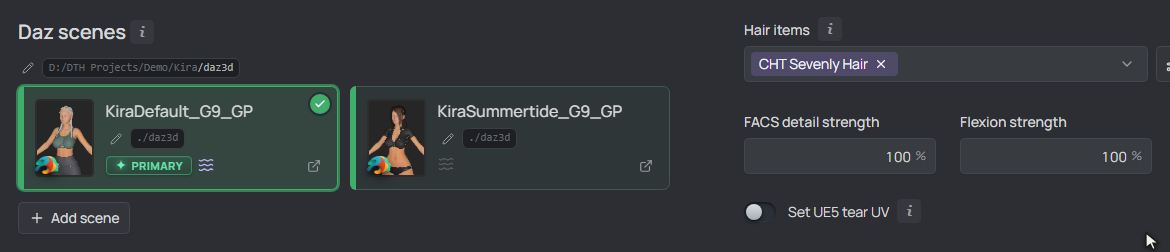
Click the outfit scene's card: it takes the selection, its own hair list comes up — and the cubes appear.
Then edit. A value that differs turns that field green and dots its cube — only that field; its neighbours go on tracking the primary.
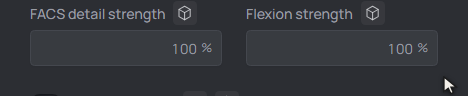
No override switch — the edit is the override. Flexion beside it never moved, so it still follows the primary.
The green cube is also the way back — hover it for a reset.
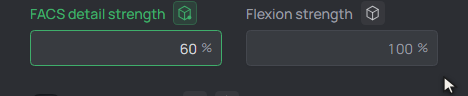
Hovering the green cube swaps it for ↺ — one click and the field is back on the primary's value.
The one thing no scene can override is the GEN section's on/off state, which follows the primary's geograft; its content overrides like any other section's.
ROM overrides#
The primary is the base ROM. On an extra scene, what you touch decides how much becomes the override:
- Tweak a base row — value, name, morphs, bone scale — and just that row overrides: it turns green and gains a reset to the base frame. Untouched rows keep tracking later base edits.
- Restructure a section — reorder, insert or delete a frame, add a group, switch the mode or preset asset, edit a GEN Art-direction frame, set a custom JCM path, or Import from Daz scene — and the whole section overrides.
Either way the section's title cube goes green; its reset restores the whole section, the per-row ↺ only that frame.

A non-primary scene's ROM grid: the green row is overridden for this scene (↺ resets it); the rows around it stay exactly as the base ROM.
What Save generates#
Save still produces one ROM apply-script — there are no per-scene scripts:
ROM_<Name>_<Genesis>.dsaembeds every scene's overrides and applies the right ones for whichever scene is open in Daz.- A scene whose overrides change the frame layout — different frames or counts,
a swapped preset, a flipped mode — also gets its own
<Name>_<Scene>_pose_asset.csvin the studio's.dcsmetafolder, since Houdini has no runtime to pick frames. Overrides that only change values ride the base CSV.
Note
Frame numbers shown on a non-primary scene are the merged ones — what that scene's CSV actually generates.
An override lasts exactly as long as something differs from the primary: reset every green field and section title and the scene falls back to the base, and its extra CSV is cleaned up on the next save.
Modify JCM frames#
The JCM section runs the shipped joint-corrective poses — bones rotate through their range and the stock correctives fire. The Modify JCM frames grid (collapsed by default) rides your own morphs along with those bends.
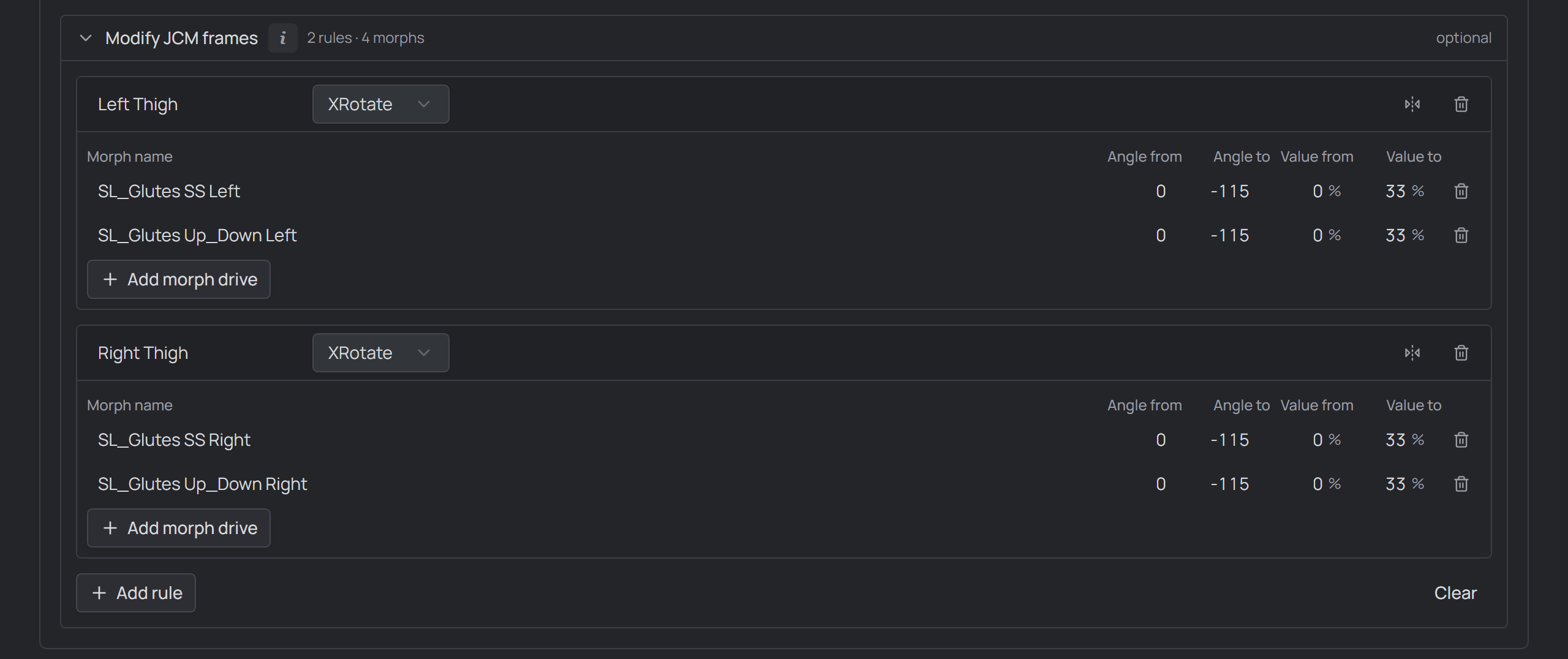
The Modify JCM frames grid expanded in the JCM section.
The grid is built from rules, each watching one bone's rotation axis (XRotate / YRotate / ZRotate) across the JCM ROM. A rule's drives are morphs it sets in proportion to the keyed angle, the angle range mapping linearly onto a value range — say a custom calf-flex morph on top of the shipped knee bends. The bone field autocompletes from the Tools → Scan & index index.
Each drive is one row:
- Morph name — the morph to drive (autocompletes).
- Angle from / to — the degrees over which it ramps. The sign of Angle to
sets the bend direction (
−115= the negative bend), so one rule can hold drives for both. A zero-crossing range is flagged. - Value from / to — the morph's value at those angles, Daz-style (
100 %= fully dialed).
Add rule starts a new bone/axis; Add morph drive adds a row. Mirror
copies a rule to the other side, flipping every Left/Right and _L/_R token and
carrying angles and values over — set a limb up once, mirror it.
Like the rest of the ROM, the grid is overridable per scene — see Per-scene overrides.